1.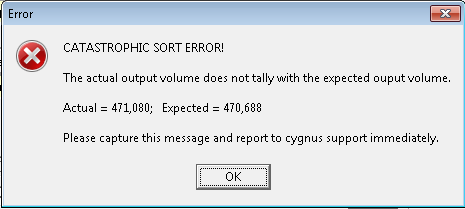
You will need to Zap the module before this sort by right clicking on the previous module and selecting ‘Zap’. Close Cygnus> Navigate to the particular job folder in windows explorer> Delete the file ‘JobT.Fld’. Open Cygnus> Re-run the modules.
Other possible causes for a ‘Catastrophic Error’ may include: Dedupe followed by an unexpected error warning; memory manager maybe off (set to No); or maybe a very big file that (even with Memory Manager on) required a temporary memory dump to complete process leading to a possible overload. If so, restarting Cygnus will re-allocate the memory.
2. 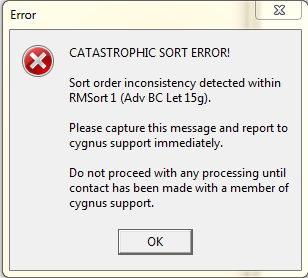
Turn off Data Integrity checking...
If you navigate to ‘Tools > Options > System > Data Integrity Checking’ and set the first 3 settings to ‘No’. Restart Cygnus > Create a new module > Re-download your data > Re-run.

(Support)
We are sometimes asked: if turning off these settings has an adverse effect of the operation of Cygnus. No, the Data Integrity system was designed around NAS drives as they can cause problems due to them being slow at reading and writing data.
If you do not use a NAS drive I find that having the settings on causes more problems than solves.
For example, you could be running an RMSort and you get a data integrity warning which shows which record(s) it believes is corrupt but when you check it, it is absolutely fine.
3. 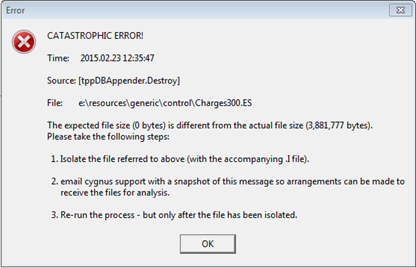
One possible reason for this error is: Chargestick was last used on previous version of Cygnus where there were differences in the suppressions listed between then and now. Removing Charges300 clears down the chargestick.csv and allows user to continue without error.
With Cygnus closed, if this is a shared area please ensure that the other Cygnus installs are closed also. You will need to remove the Charges300.es file from the folder stated in the error message - please keep a copy of this file as this could be required later. It will then regenerate when you open Cygnus again.
Warning
This will reset the overall breakdown of ES counts, they will still be available from each job however and if your submission file has already been generated they will be in the csv.
4. 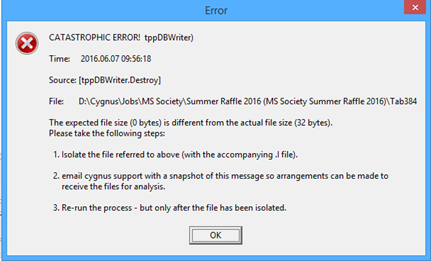
Delete module > Restart Cygnus > Zap previous module > Rebuild a new Module > Rerun
0 Comments