Overview
Data integrity checking is not something new to Cygnus; indeed, there has always been an option to check the integrity of the data in the system level settings under [General].Data Corruption Checking Level.
That said, we feel that the feature is perhaps less than transparent and therefore perhaps unknown by most Cygnus users; let alone understood.
For this reason we have polished it up and the following article attempts to describe its value and how it can be used.
Why does Cygnus have data integrity checking?
Apart from the notion that data integrity checking cannot be a bad thing, there are four basic reasons why we have it:
- We have had reported situations where cloned records have been inadvertently added back into processes that results in duplicate URNs in the output. This can be monitored using the revised checking feature.
- Over the years a few situations have arisen where blocks of records have been randomly duplicated in output files, although upon re-running the module the problem has disappeared. Resultant investigations invariably show that the issue was caused by network issues i.e. not the Cygnus software. However, this revised checking feature could well capture such situations.
- Cygnus is very memory intensive and so weak RAM can cause corruptions in the data. We have had users experience this only twice over many years but it has happened! The problem seems to manifest itself by random corruptions of 4 bytes (size of a pointer). This revised checking feature will
attempt to capture these occurrences. - Finally, we have it in place so that new Cygnus modules can be system tested to ensure that they are not corrupting data.
In summary of the points above, Cygnus does not cause data corruption problems, but due to the memory intensive nature of the product and coupled with fast I/O, we recommended the very best hardware.
As a starting default we have set it ON just for Export although it can be configured on a module by module basis.
Settings/Configuration
There is a section at system level called Data Integrity Checking.
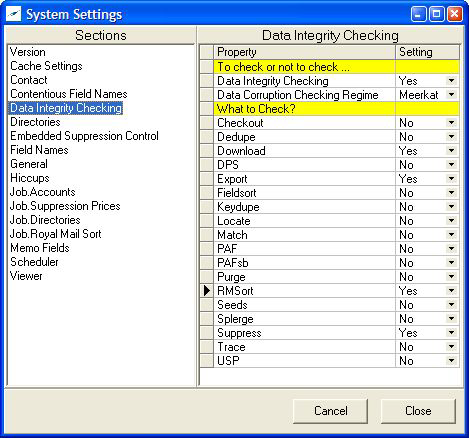
In the example above data integrity checking has been turned ON in the 1st subsection ‘To check or not to check…’.
The modules where checking is required (‘What to Check?’) has been limited to Download, Export, RMSort and Suppress.
There is a further specific data corruption setting in ‘To check or not to check …’ of Data Corruption Checking Regime which replaced the old [General].Data Corruption Checking Level. This setting used to have a setting of 0, 1, 2 or 3. It now has more descriptive equivalents which are described below.
The data corruption settings relate to the generation of, and subsequent checking of record checksums.
The old values in the data corruption checking regime 0, 1, 2 and 3 have now become Ostrich, Squirrel, Meerkat and Swan respectively.
These unlikely names have been selected for the following reasons:
- Ostrich is synonymous with ‘having your head in the sand’. If this regime is selected then no checksum checking will take place.
- Squirrels secrete food in the autumn to use used in a harsh winter. This regime will create a checksum in each record but will not check it thereafter.
This may seem rather pointless but the idea is that if the checksum is present then higher level regimes that require the checksum can investigate if required. - Meerkats are always on the lookout for trouble. So, this regime will interrogate the checksum whenever a record is read. Meerkat regime will both create the checksum (a la Squirrel) and will also check thereafter.
- Swans are fiercely protective of their young and extremely loyal. Also, we have an affinity to swans given the product name and so we have swans at the pinnacle of the animal hierarchy. This regime will do everything that the Squirrel and the Meerkat will do but also read back records just written to
ensure that the disk I/O did not corrupt the data.
When does checking take place?
Checking takes place at the end of a module’s processing, except in the case of Export where it happens at the beginning of processing. Naturally, checking will only take place if the module has been chosen for checking.
Although module checking will check on data corruption and duplicate URNs, data corruption settings act independently. If the Data Integrity Checking setting is switched OFF but the Data Corruption Regime is set to other than Ostrich, then data corruption is checked on every file written and read in the job.
For example, we could set the Data Corruption Regime to just Squirrel which means that the checksum is generated but no continual checking done. At the same time we set the Data Integrity Checking ON for a module or modules.
Whist processing a job flow, checksums are being generated but not checked, then when the module (or modules) that require checking are encountered, the checksums are eventually interrogated.
What does checking look like on the GUI?
A small generic Data Integrity Checking form is projected onto the GUI that looks like
this:
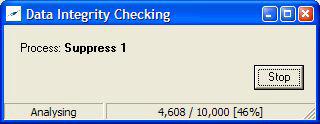
The processing is in two phases: firstly, ‘Scanning’ and then ‘Analysis’.
Note that it can be stopped.
Once the processing is complete the form will automatically close.
What happens if failures are detected?
During a module level Data Integrity Check it will look like this:
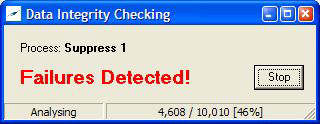
Once the processing has completed the form will automatically close but unlike a run that did not detect failures, a message is displayed on the GUI:
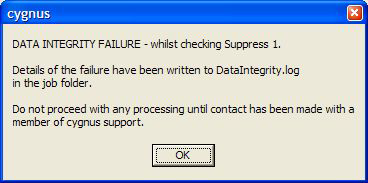
It is important to report this condition to Cygnus support before continuing with any processing. Cygnus support will certainly wish to see the log file that has been written to the job folder.
In the example above 10 clones were deliberately added to the process to force a fail situation. The log looks like this:
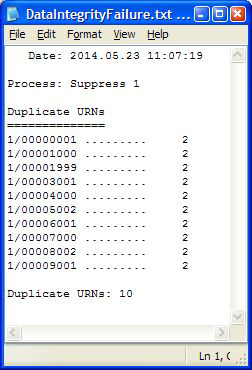
Naturally the content of this report will vary according to the types of failures detected.
However, if Data Integrity Checking is switched OFF but Data Corruption Checking has a regime of Squirrel, Meerkat or Swan, then independent checksum interrogation takes place.
If a corruption is detected here then the GUI will have a message along the lines of:
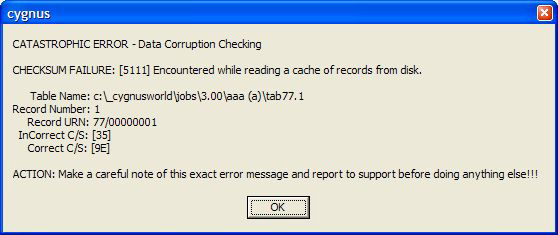
What are the implications of limiting the checking?
The most import module to have this checking on is the last module i.e. Export. In this situation any failures gather en route will be found at that point.
However, by checking after every module the user will know immediately rather than have to search later for the point where errors occurred.
In the words of Harry Callaghan – ‘Are you feeling lucky?’
Does this extra processing add much time to the job?
Yes; but not a great deal.
If a user suspects that the network is fragile or has RAM issues then they have to balance the ‘peace of mind’ factor against running time.
Clearly, the volume of data will hold the key to the length of time the extra processing will take.
What if I only want checking on one-off jobs?
Provision has been made for this scenario. Firstly, turn OFF the general checking setting in the system settings.
Secondly, set a job level condition either through the Parameters->Conditions menu or using an ‘in process’ Environ module. This condition is Data Integrity Checking.
Note that conditions are case sensitive.
Although the above is true, what cannot be set ON and OFF at job level is the Data Corruption Checking elements.
How is command line processing affected?
Any detected failures will be reported on the GUI - even with the /WarningsOff switch applied.
The progress form is not displayed if the /LightsOut switch has been applied.
What settings would you recommend?
For a new site we would recommend the complete smorgasbord – everything on i.e.
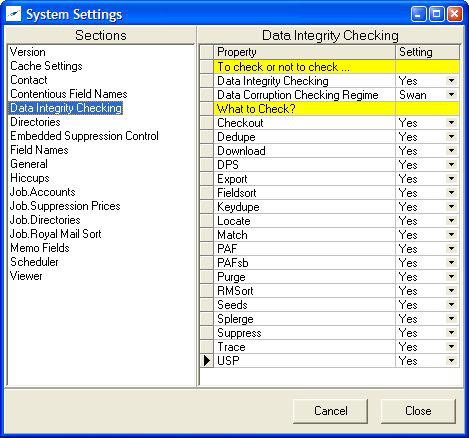
Then if everything is ok after a week we would suggest reducing from Swan to Meerkat.
Allow another week and then reduce further.
Over time we suggest a pragmatic group of settings that check just Export module.
Reduce the Data Corruption Regime to Squirrel i.e. prepare for checksum checking
but only do it at the end of the job.
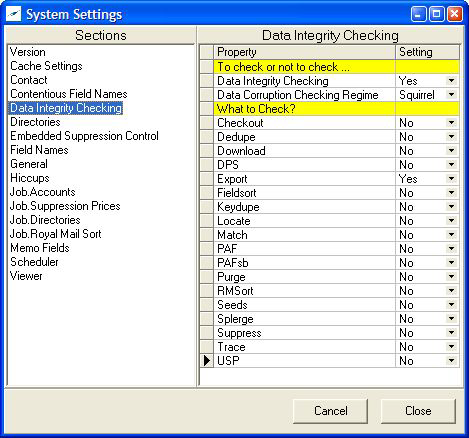
For existing users, we suggest that unless you have been using the existing feature and therefore are confident that your system is robust, and then you do something similar to the above.
The worst thing to do is be complacent and therefore we also suggest a once a year re-evaluation of your system.
File Verification Application
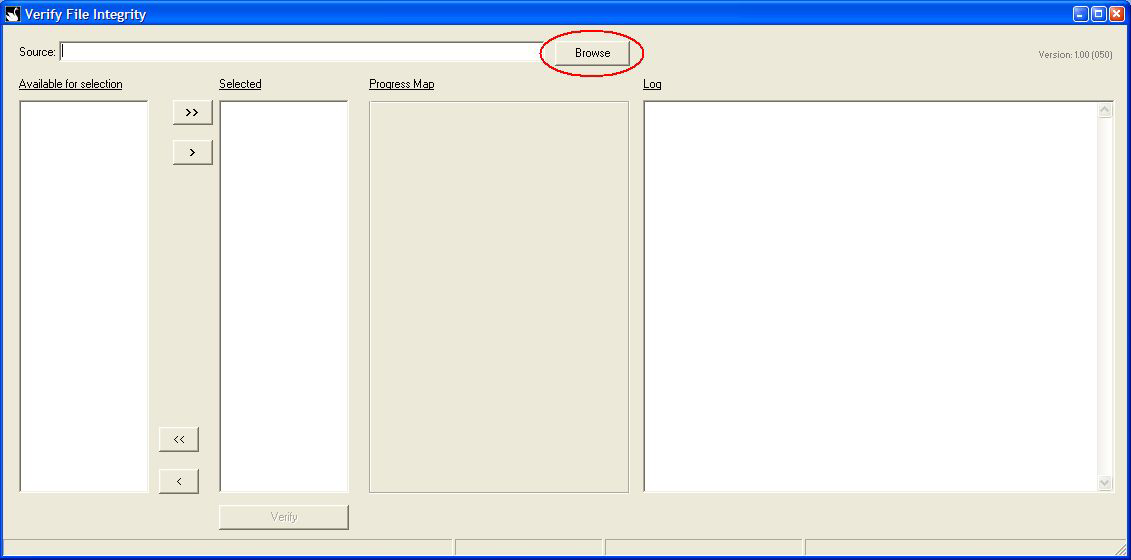
If corruption can happen then eventually it will happen. To this end Software Bureau provides an application called cyVerify that takes a folder and analyses selected files for corruption.
Upon opening the user must ‘browse’ to a folder containing Cygnus databases. This can be a job folder or perhaps a folder that contains a flavor of industry suppression indexes (either Purge or Trace/Suppress):
Upon folder selection all available databases are displayed ready for selection:
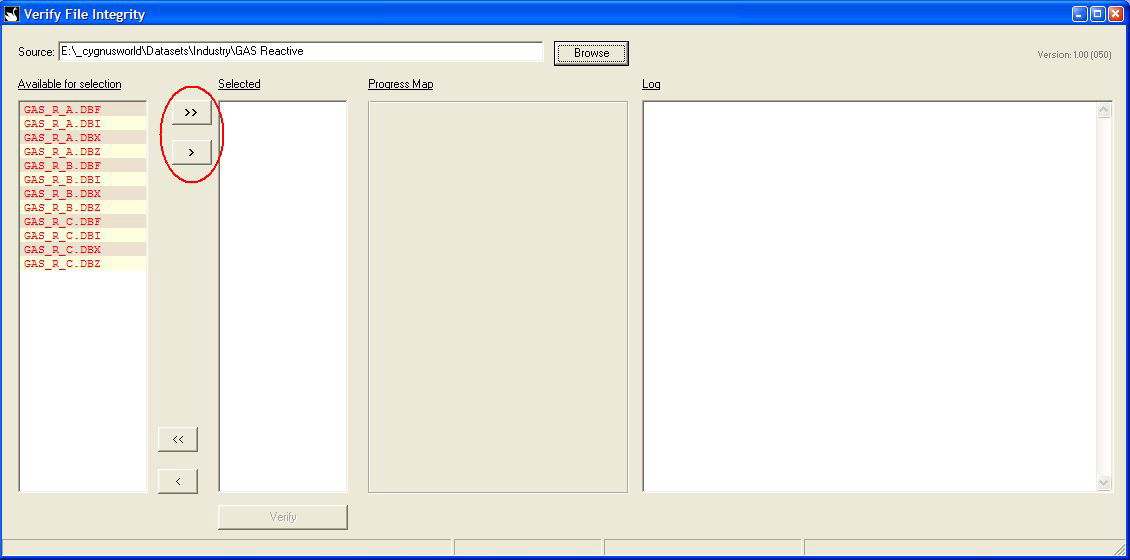
Now use the ‘transfer’ buttons to either select all or a group:
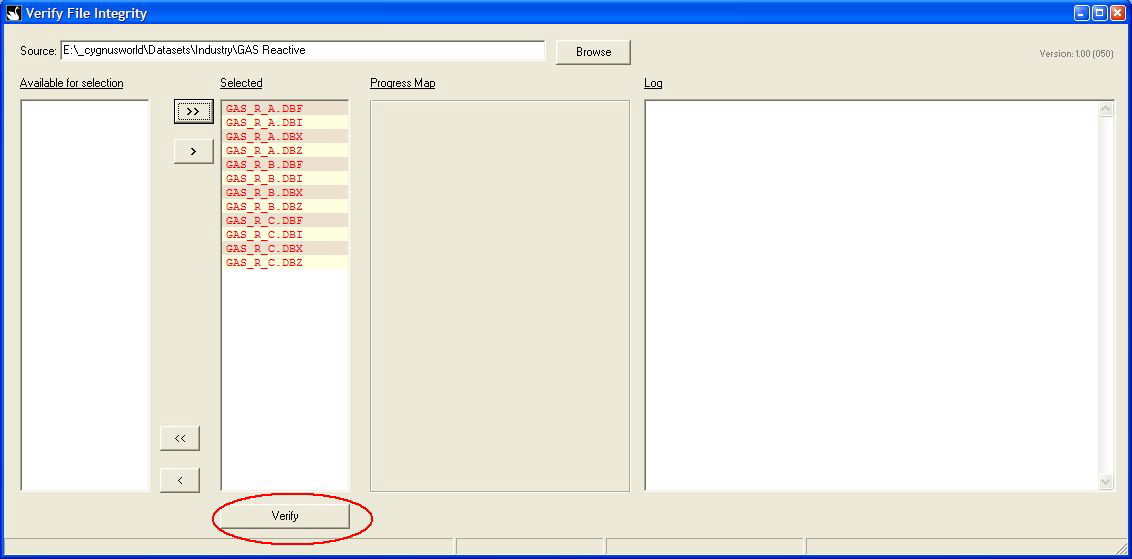
In this example we are using a selection of GAS Reactive Purge indexes. The user now clicks the ‘Verify’ button to start the process.
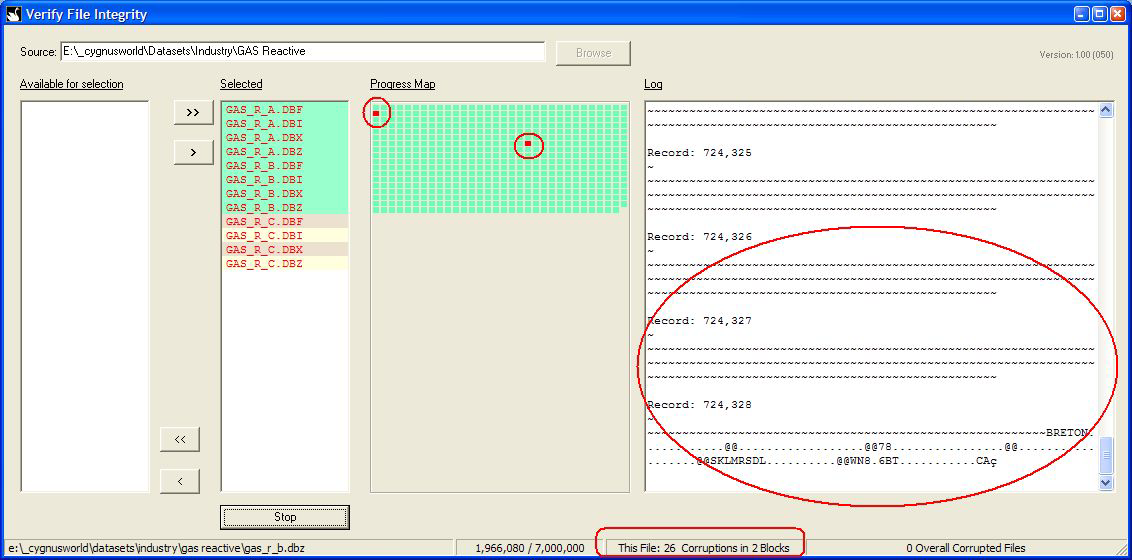
Each file is analysed in turn with the progress reflected in the progress map area (green indicates non corruption). The Log is updated with details of the analysis:
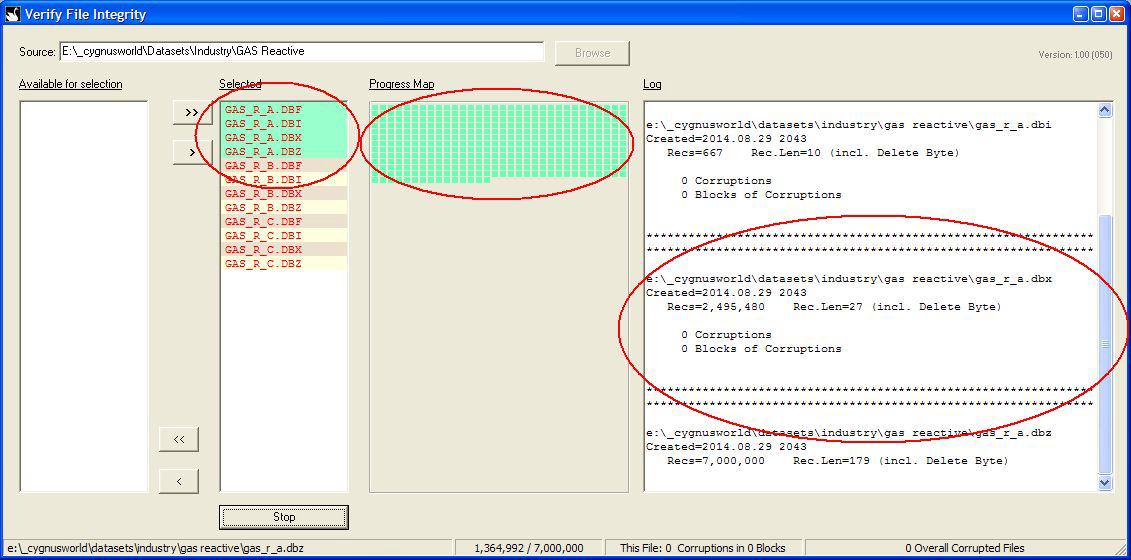
If corruption is detected then the Log reflects the corruption in terms of the record number and the data encountered. The progress map also reflects red dots to show the areas in the file that have been corrupted:
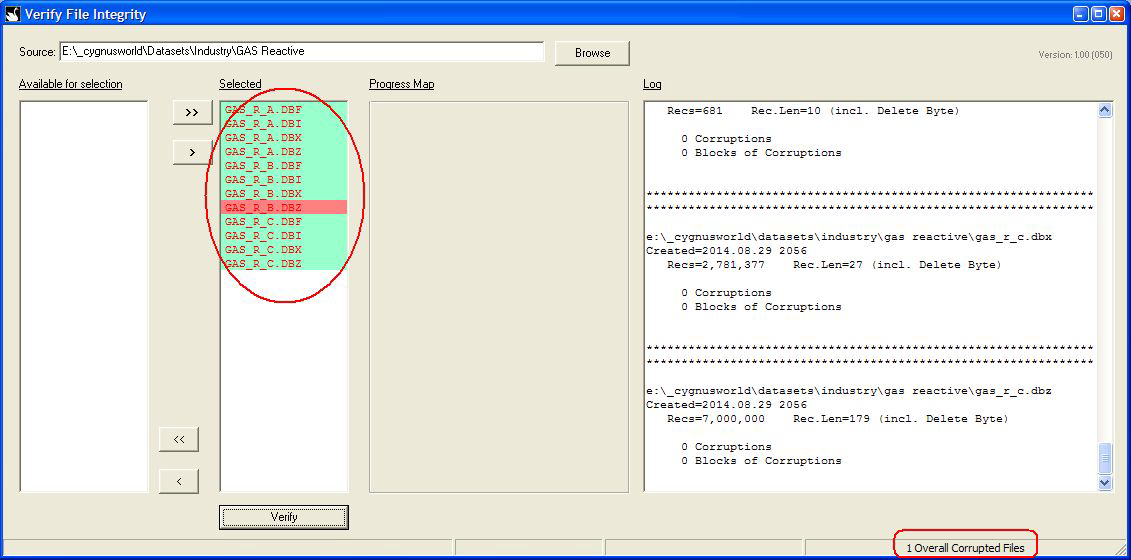
Once all files have been analysed, the log can be reviewed and the status of the run can be seen with those corrupted files highlighted in red:
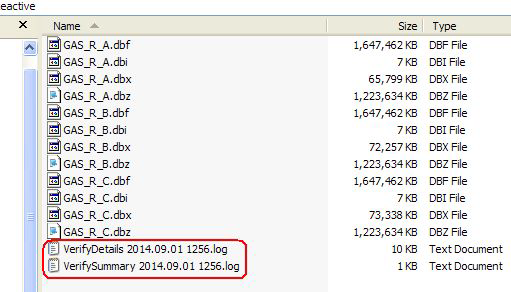
Two hard copy logs are produced in the folder under scrutiny: A Detailed log (exactly as shown on the form) and a summary:
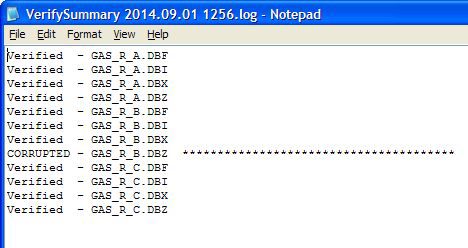
The summary:
The detailed log:
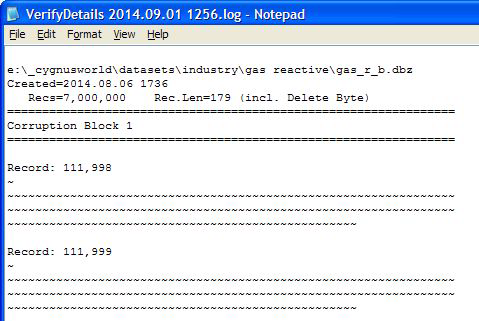
Note that the detailed log shows spaces as full stops (.), nulls as tildes (~) and not displayable characters as percent signs (%).
*-*-*-*-*-*-*-*
0 Comments