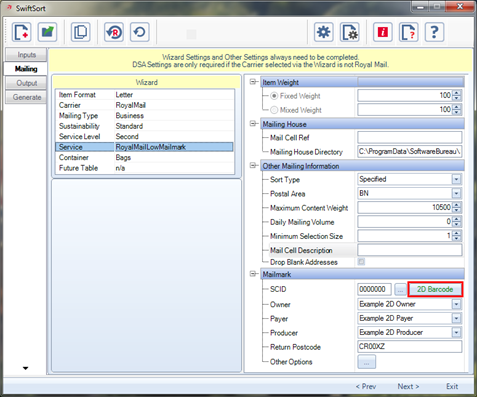
Set your Mailmark sort requirements and then click on the ‘2D Barcode’ button.
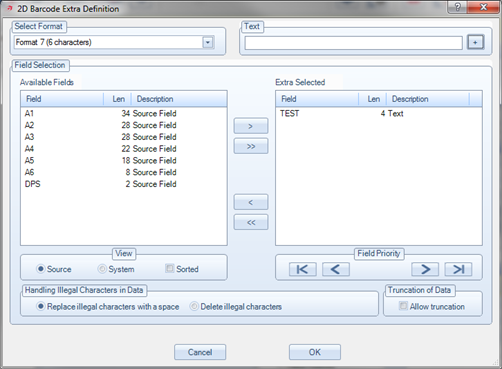
This will open a window where you can choose your barcode type and enter in any client information. Once done, click ‘OK’.
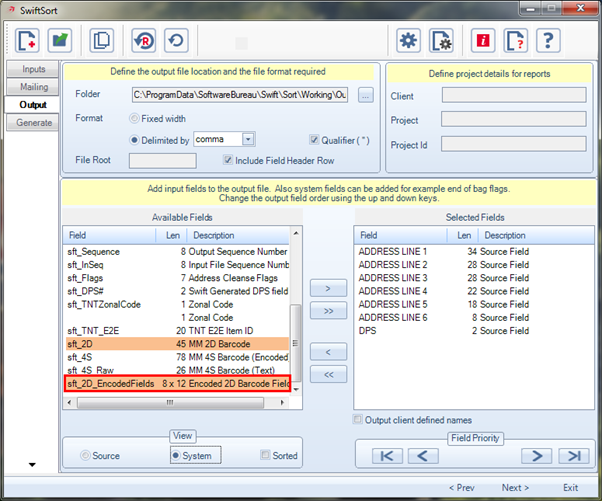
Progress to the ‘Output’ tab and in the ‘System’ fields you will see the option to export the encoded 2D barcode fields.
When you look at the output file, this is how the encoded fields will appear.

It can be seen that ‘rows’ are expressed as individual fields.
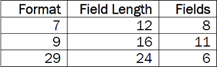
The field lengths and number of fields will vary according to the format used. The table below shows the differences.
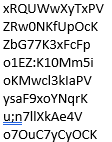
If the example above is placed on a word document with the fields one beneath the other with no line spacing we get:
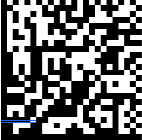
Now apply an AWTZ font we get
The fonts can be found in the below folder and installed by double clicking on them:
C:\Program Files\SoftwareBureau\Swift\Sort\Data Matrix Fonts
OR
C:\Program Files (x86)\SoftwareBureau\Swift\Sort\Data Matrix Fonts
Make this a font size of 5 and we finally end up with:

0 Comments