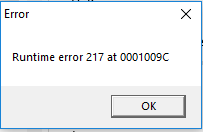
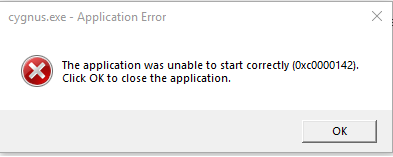
The above error messages may appear if Cygnus crashes. The user will need to navigate to C:\ProgramData\SoftwareBureau\*version of cygnus in use* and check whether the sysSettings.ini file is populated. If empty, a back-up copy will need to be placed in this folder to replace the corrupted version. Alternatively, a copy of a colleague's sysSettings.ini file will allow user to get back into Cygnus.
If the sysSettings are intact and you received any of the above error messages then you should check whether UAC is switched on and causing Cygnus to read from the Virtual folder instead of the local files.
If none of the above helps to resolve then user is required to contact their IT and find out if any maintenance, back-ups or change of folder locations etc. has been actioned since they were last able to log in successfully.
The 216 & 217 error usually means that Cygnus has not been able to see or access the resources folder on start up.
Question(s) to ask:
- Are you having any problems with the network that might prevent Cygnus from accessing its resources? Cygnus cannot see its resources when loading. This could be due to a permissions problem.
- Are your resources stored locally or on a networked drive? Access to a network drive may indicate ‘bottle necking’.
- Is there anything that might be limiting network traffic? As Cygnus will also generate error messages if it does not receive fast enough access to folders/ files.
If there is no networked/ shared drive it’s a good idea to have a look at sysSettings as there is likely to be an error with the directories/ paths.
Ask for a Screenshot of Resources location to ensure they match up with sysSettings.ini.
These type of errors could be generated by access / permission restrictions. You will need to confirm that you have 'Full Control' access to all folders – from Cygnus root folder downwards, for users not just administrators.
Question(s) to ask:
- Can you also confirm that all Cygnus folders are ‘White-listed’ in any anti-virus and firewall software? It may be an idea to check all automated scripts to ensure all folder paths are pointing to the correct locations. In addition, please ensure you have 'Full Control' permissions to the resources folder by right clicking on it and navigating to Properties>Security.
- Have there been any changes recently such as Windows update(s)?
A '217' can also be generated after a crash this would imply a problem with the sysSettings.ini file.
0 Comments